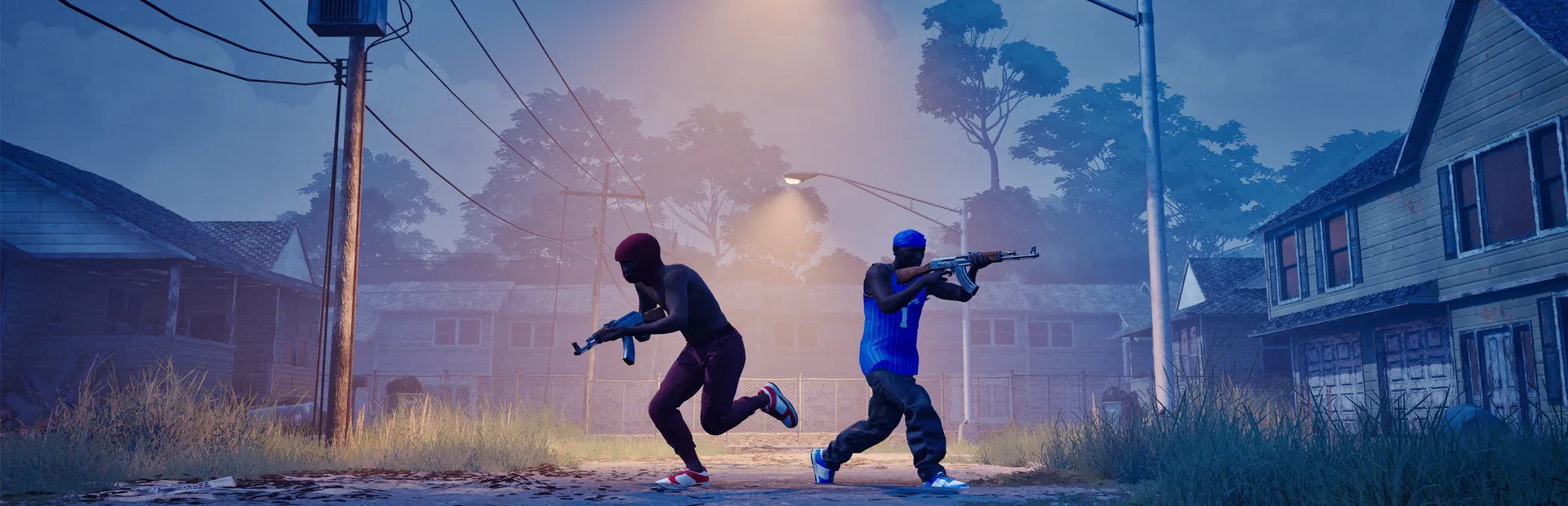
Draco and ARP were added in patch 1.0.1.8 on October 17, 2026. Their unlock levels are not published in the announcement. The general route for more weapons and equipment is match play and leveling. The nine-gun table below records earlier video menus, so check the requirement in your installed game before planning a grind.
Build a checklist for your next session
The tracker above contains 19 recorded goals: seven weapon level requirements, six Choppa skins, four Choppa attachment challenges and two passive level requirements. They come from the dated menus linked below, rather than a live connection to your account. Choose only goals whose requirements match your current game.
- Use Search recorded unlocks to find a gun, reward or condition, then choose the entry under Recorded unlock.
- Open its timestamped source if you need to inspect the original menu. Compare the displayed requirement with your installed game.
- Tick I checked that this requirement matches my game, then select Track selected unlock. The entry starts at zero; enter your actual progress rather than leaving that default in place.
- After a session, update the progress on each goal from its in-game counter. The card shows the target and the amount remaining.
- Untick Show completed unlocks to keep only unfinished goals visible. The completed entries remain saved, so you can show them again later.
You can also start in the equipment database: Track this recorded requirement opens the matching tracker choice. It does not add anything until you confirm it. If your current requirement differs, use Add a requirement from your current menu and copy the exact condition, gun and version into the requirement field.
Update reputation goals together
Once you have added a recorded weapon or passive level goal, enter Current reputation level and select Update tracked level unlocks. This updates all tracked catalog goals based on player level in one action. It does not change skin kills, attachment challenges or manually entered goals, even when a custom entry is labelled Weapon.
For example, if your current game agrees with the recorded Uzi level-five requirement, reaching level five completes that tracker goal after the update. It does not mark a 100-kill Choppa skin complete. A completed card records the numbers you supplied; check that the reward is actually selectable in the game.
Draco and ARP unlock requirements
| New gun | What the developer confirms | Unlock requirement |
|---|---|---|
| Draco | Added in patch 1.0.1.8 | Not stated in the announcement |
| ARP | Added in patch 1.0.1.8 | Not stated in the announcement |
Source: Trapstar Games' 1.0.1.8 patch notes, checked October 19. Look for the gun in your updated client and record its displayed requirement in the tracker. The October 12 video predates these additions and cannot establish either new gun's level, attachment options or stats.
For all changes in this release, read the 1.0.1.8 update summary.
Historical gun unlock table: October 12–14 videos
This table records Legends6K's original menu footage, checked directly on October 17. The Mac-10 row uses the clearer BAMS 2 menu from October 14, rechecked October 19. The exact game builds are not identified. Requirements can change; the table describes the recording rather than promising the same levels in patch 1.0.1.8 or later.
| Gun | Requirement shown | Source moment |
|---|---|---|
| Choppa | Available in the starting loadout shown | 1:30 |
| AKM | Level 8 | 1:30 |
| Uzi | Level 5 | 1:33 |
| Mac-10 | Level 25 | BAMS 2, October 14, 7:30 |
| Pump Shotty | Level 15 | 1:36 |
| .308 Sniper | Level 10 | 1:39 |
| Oldhead | Level 20 | 1:39 |
| Glock | Available in the starting loadout shown | 1:48 |
| The Nine | Level 7 | 1:48 |
These nine firearms are the historical video list, not the full post-update roster. Draco and ARP were added later. Blade appears under the separate Melee tab and is not a firearm. Use the source-linked database to search these observations alongside skins, attachment challenges and official unlock paths.
If your current requirement differs, record the current value and game version in the tracker above. Do not combine a requirement from one version with progress from another and assume the mismatch is a bug.
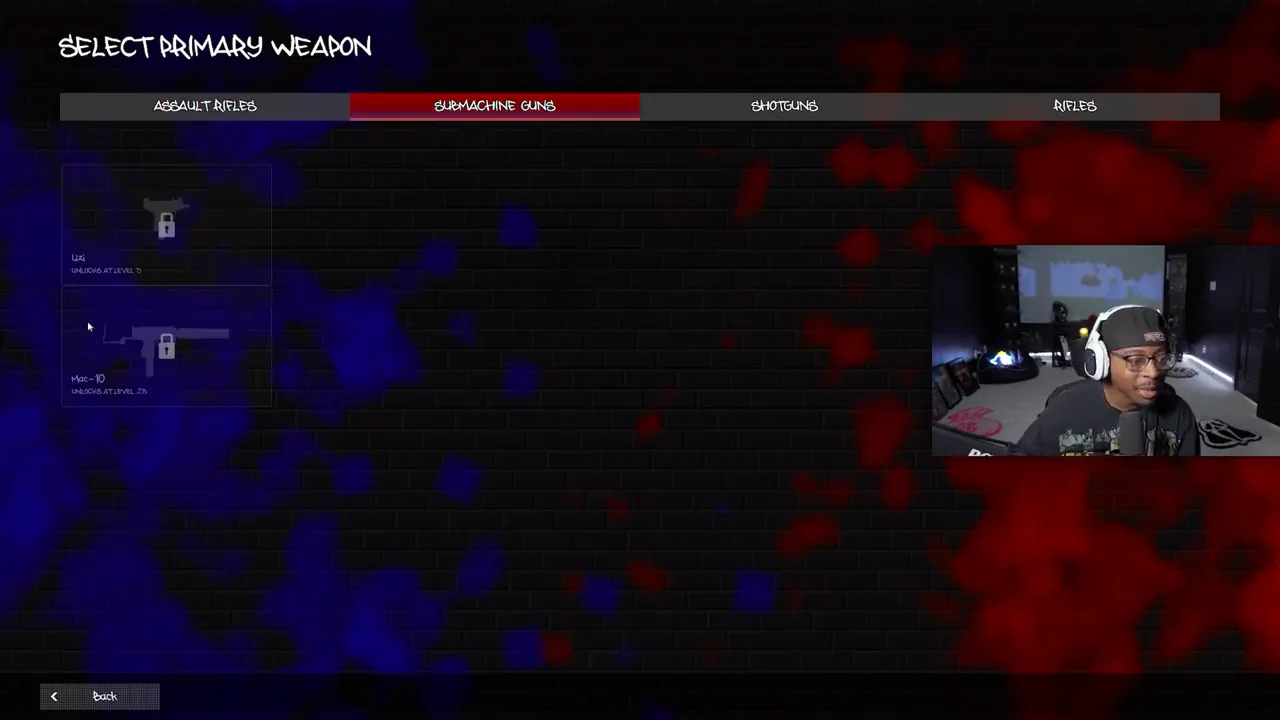
Use the requirement in your installed game if it differs from this dated recording. Original frame: Legends6K, 1:33.
Identify what is actually locked
A weapon, an attachment and a skin are different reward targets. Hood Warfare 2 describes three corresponding progression routes:
| Target | Confirmed route |
|---|---|
| More weapons and equipment | Match play and leveling |
| Weapon attachments | Weapon challenges |
| Skins for a particular gun | Kills with that gun |
This distinction matters when an item you want is unavailable. Finishing an attachment challenge is not the stated route for unlocking a new gun, and getting a finish for a gun is not evidence that another weapon became available.
Check the weapon you want to use
Start from the game's actual weapon choices. Identify the target by the name shown on your screen, then check whether it can be selected. If a requirement is displayed, write it down exactly and keep it with your current level.
This guide does not provide a verified current click-by-click menu path or a complete current weapon inventory. The table above provides historical observations only. The weapon selection view is useful for identifying your target, not for supplying requirements that are absent from the visible interface.
Avoid matching an unlock requirement to a weapon solely because it resembles a gun from another shooter. Similar-looking firearms do not prove that two games use the same progression system.
Follow the leveling route and verify the result
Use this recommended routine to organize your next unlock:
- Choose one unavailable weapon as your current target.
- Note its displayed requirement, if the game provides one.
- Play matches and check the level or progress information the game actually shows.
- Return to the weapon choices after gaining a level or meeting the displayed requirement.
- Check that the weapon is available and selected before preparing its configuration.
The final check separates earning access from choosing the weapon for a match. An unlock should not be assumed to replace the gun already in your loadout.
Keep attachments out of the gun-unlock checklist
Once you can use the weapon, attachment access remains a separate question. Sights, magazines, grips and suppressors are supported customization categories, with attachments earned through weapon challenges.
Record locked attachments under that gun's challenge goals rather than adding them to a guessed player-level unlock list. Likewise, track skins through the gun's kill-based route.
Investigate a requirement mismatch carefully
If a weapon still cannot be selected after you think you met its requirement, recheck the target's name, the displayed condition and the progress measure you used. Keep a record of what the game shows before diagnosing a failure.
Patch 1.0.10 explicitly fixes progression sometimes not displaying correctly at the end of a match and loadout presets not saving. These are display and preset fixes; the announcement does not supply new weapon-unlock levels or say that every locked weapon was caused by those bugs.
Check your installed update, then compare the actual unlock requirement and the weapon's selectable state after the session. If you are testing a saved loadout, return to the menu and check whether the selected weapon remains in the preset. Keep a missing post-match display separate from a requirement you have not met.
Source: Trapstar Games' 1.0.10 patch notes. See the official update timeline for the later private-lobby and joining fixes.
Keep a backup of your progress notes
The tracker can save up to 50 personal unlock entries. Export unlocks JSON downloads the list, including the requirement, current progress and target you entered. Use Import unlocks JSON to restore that file on another browser. Import replaces all current entries; export the current list first if you want to preserve it.
Backups must use this tool's format, contain unique entry IDs and stay under 64 KB. Invalid JSON, a loadout backup, duplicate entries or out-of-range progress values are rejected without changing your current list. The tool does not read Steam account progress, verify your requirement or unlock an item in game.
Track the correct requirement
The tracker above combines sourced starting points with requirements you enter from your own game. For player progression, read leveling and unlocks. For the other routes, use weapon challenges and weapon skins. A manually completed entry does not verify an official unlock threshold.
Official feature reference: Hood Warfare 2 on Steam.