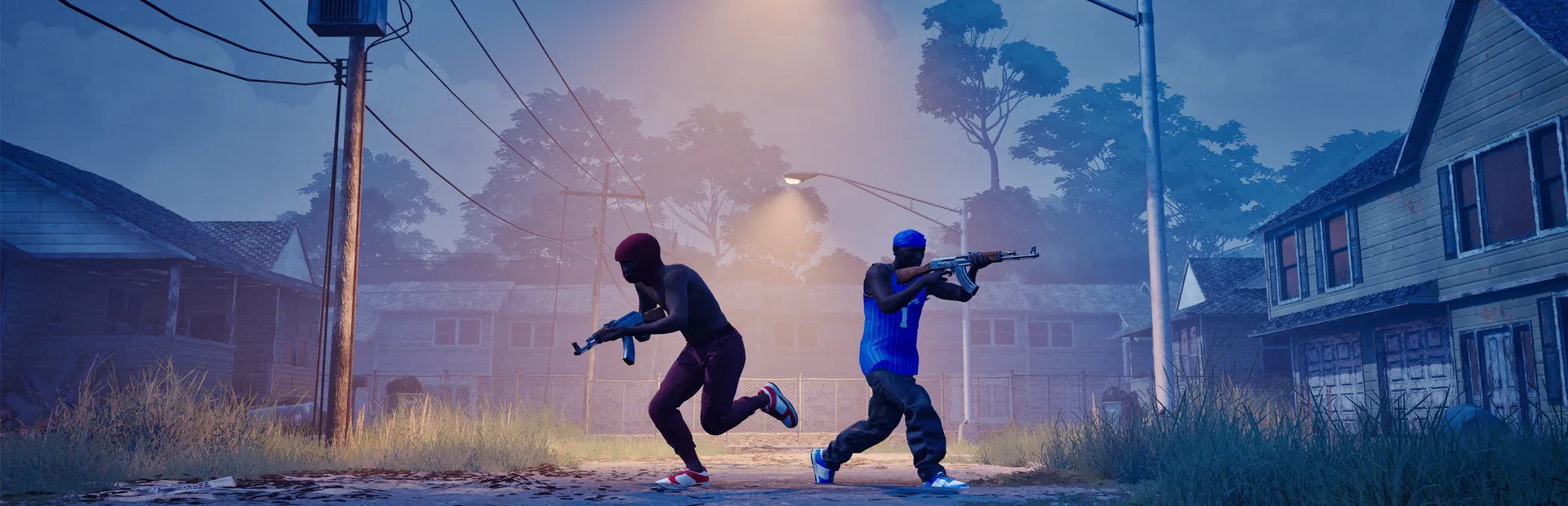
Hood Warfare 2's PC listing includes full controller support and identifies Xbox controllers. A complete current default-button chart, tested best controller preset and verified in-game deadzone or aim-assist settings are not available here. A dated recording does show how its creator uses the killstreak slots. Start with a controller that your PC and Steam recognize, then verify its inputs in the game before changing the layout.
Establish which configuration you are using
Connect the controller and check that Steam recognizes it before launching the game. Review the controller configuration associated with Hood Warfare 2 rather than a profile intended for a different title. If you already use a custom layout, record it so you can return to the same baseline.
Steam Input can map controller inputs to gamepad, keyboard or mouse inputs. A mapping layer and a game's own controls are separate parts of the setup; changing both at once makes the result harder to explain. The game's full controller support label does not prove that it implements a particular Steam Input API or that every controller model behaves identically.
Check the game before tuning the sticks
Use a bot match to make a simple input check. The game supports choosing a map, mode and match settings and adding bots to fill teams. Keep the setup fixed while you test the device.
- Check movement and camera control separately.
- Check the weapon actions offered by the game and compare them with the active layout.
- Confirm that menu selection and confirmation work as intended.
- Check a displayed interaction prompt when the chosen mode presents one.
- Change one mapping only when you have identified an action that does not match the layout you want.
These steps help isolate an input problem. They do not establish a default button assignment, guarantee a fix for a particular device or prove that an unresponsive action is caused by the controller.
Call an equipped killstreak using the recorded D-pad slots
In Ears' October 13 gameplay at 15:42, the creator describes D-pad left for Snitch, up for Homies and right for his third equipped reward. He also discusses changing that third slot between the bomber and Drive By. Treat these as slot inputs in his shown setup, rather than permanent buttons assigned to every reward.
- Check the three rewards currently equipped in your loadout.
- Compare their shown button prompts with your active controller layout.
- When the game marks one ready, use the input for that equipped slot.
- If nothing happens, recheck readiness, the slot assignment and any custom Steam Input mapping before changing sensitivity.
The recording does not identify its game build or establish identical mappings on every controller. The killstreak guide separates the recorded requirements from the later Crashout rename.
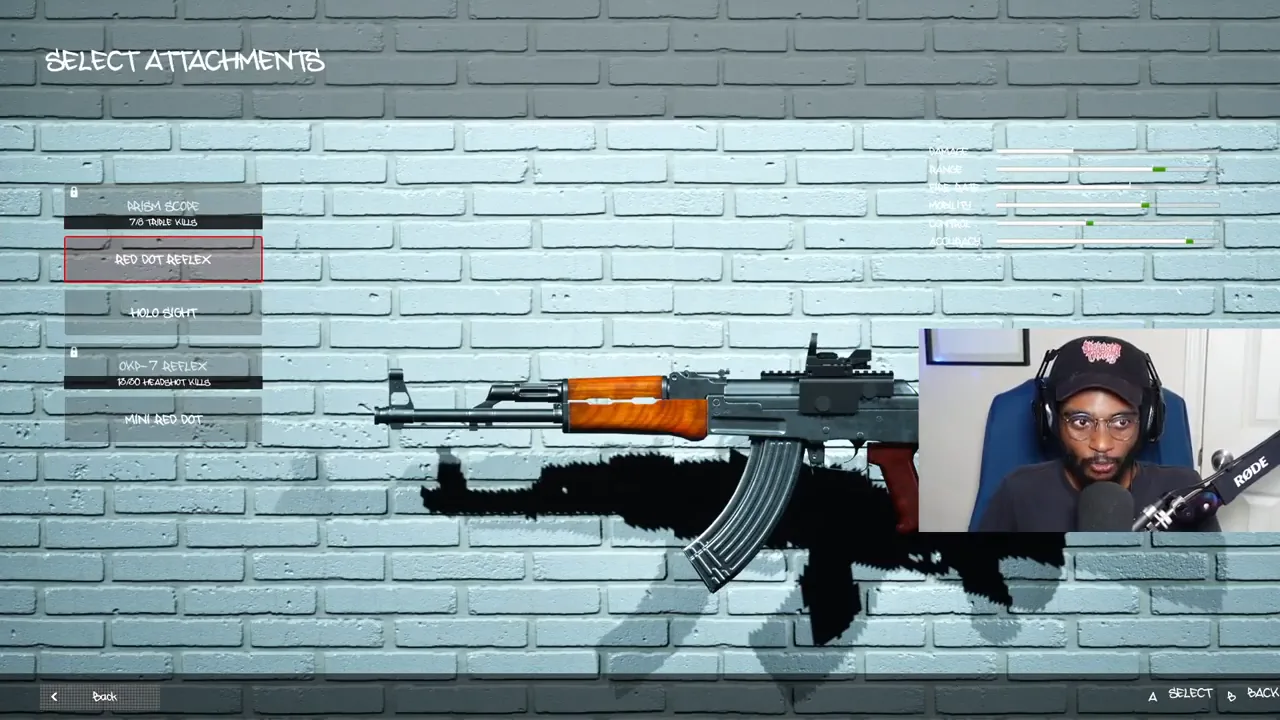
The recorded attachment menu displays A for Select and B for Back at the bottom-right. Read the prompts for your active input device; these menu prompts do not establish every combat binding.
Tune only settings that actually exist
If the game offers stick sensitivity, start with its current value and compare a small adjustment against the same stationary visual reference. If you use a Steam Input setting instead, record that change separately from the game's settings. Avoid describing a Steam configuration option as a built-in Hood Warfare 2 option.
Do not copy named response curves, aim-assist modes or deadzone percentages from Call of Duty guides. Their presence and effects in Hood Warfare 2 are not established. Similarly, a working Xbox controller setup is not evidence of PlayStation-specific features or Nintendo button labels.
Describe the result precisely
A useful personal setup note includes the controller model, connection method, active Steam configuration and any in-game settings you actually changed. Keep claims limited to the session you checked. Full controller support on Windows does not establish a console release, and Steam Deck compatibility is listed as unknown in the available game snapshot.
Separate device checks from aiming checks
Use the controls checklist for action recognition, the mouse sensitivity workspace only when calibrating a mouse, not controller sticks, and the PC requirements for platform checks.
Official feature reference: Hood Warfare 2 on Steam.